2 minutes
Terraform runpod openclaw [dev setup]
1. Installer Terraform sur macOS
brew tap hashicorp/tap
brew install hashicorp/tap/terraform
terraform --version
2. Obtenir une clé API RunPod
Rendez-vous sur https://www.runpod.io/console/user/settings
Sectionnez API Keys → Create API Key (permissions Read/Write)
Copiez la clé et exportez-la:
export RUNPOD_API_KEY="rp_xxxxxxxxxxxxxxxxxxxxxxxx"
3. Fichiers Terraform
Créez un dossier openclaw-runpod/ et place-y ces 3 fichiers:
vim openclaw-runpod/variables.tf
variable "runpod_api_key" {
  description = "RunPod API key"
  type        = string
  sensitive   = true
  default     = ""
}

variable "ssh_public_key" {
  description = "SSH public key for secure access"
  type        = string
}

variable "pod_name" {
  description = "Name of the RunPod pod"
  type        = string
  default     = "openclaw"
}
vim openclaw-runpod/main.tf
terraform {
  required_providers {
    runpod = {
      source  = "decentralized-infrastructure/runpod"
      version = "1.0.1"
    }
  }
}

provider "runpod" {}

resource "runpod_pod" "openclaw" {
  name       = var.pod_name
  image_name = "runpod/pytorch:2.1.0-py3.10-cuda11.8.0-devel"

  gpu_type_ids = [
    "NVIDIA RTX A4000",
    "NVIDIA RTX A4500",
    "NVIDIA GeForce RTX 3090",
    "NVIDIA GeForce RTX 4070 Ti",
    "NVIDIA GeForce RTX 4080",
    "NVIDIA RTX A5000",
    "NVIDIA L4",
    "NVIDIA GeForce RTX 4090",
    "NVIDIA A40",
  ]
  gpu_count     = 1
  interruptible = false

  cloud_type        = "COMMUNITY"
  support_public_ip = true

  container_disk_in_gb = 30
  volume_in_gb         = 30
  volume_mount_path    = "/workspace"

  ports = ["22/tcp"]

  env = {
    PUBLIC_KEY             = var.ssh_public_key
    JUPYTER_PASSWORD       = "disabled"
    OPENCLAW_GATEWAY_TOKEN = var.gateway_token
    OPENCLAW_GATEWAY_BIND  = "loopback"
    OPENCLAW_GATEWAY_PORT  = tostring(var.gateway_port)
    GOG_KEYRING_PASSWORD   = var.gog_keyring_password
  }

  docker_start_cmd = [
    "bash", "-c",
    join(" && ", [
      "mkdir -p /root/.ssh",
      "echo $PUBLIC_KEY > /root/.ssh/authorized_keys",
      "chmod 700 /root/.ssh",
      "chmod 600 /root/.ssh/authorized_keys",
      "service ssh start",

      "mkdir -p /workspace/.openclaw/workspace",
      "ln -sfn /workspace/.openclaw /root/.openclaw",

      "curl -fsSL https://deb.nodesource.com/setup_22.x | bash -",
      "apt-get install -y -qq nodejs socat",
      "npm install -g --ignore-scripts openclaw@latest",

      "openclaw gateway --bind $OPENCLAW_GATEWAY_BIND --port $OPENCLAW_GATEWAY_PORT --allow-unconfigured",
    ])
  ]
}
vim openclaw-runpod/outputs.tf
output "pod_id" {
  description = "RunPod Pod ID"
  value       = runpod_pod.openclaw.id
}

output "pod_cost_per_hr" {
  description = "Cost per hour"
  value       = runpod_pod.openclaw.cost_per_hr
}

output "pod_public_ip" {
  description = "Public IP (use for SSH)"
  value       = runpod_pod.openclaw.public_ip
}
4. Lancer le déploiement
cd openclaw-runpod

# Initialiser Terraform
terraform init

# Prévisualiser ce qui va être créé
terraform plan -var="ssh_public_key=$(cat ~/.ssh/id_ed25519.pub)"

# Créer le pod
terraform apply -var="ssh_public_key=$(cat ~/.ssh/id_ed25519.pub)"
5. Se connecter et utiliser OpenClaw
# Récupérer l'IP publique
terraform output pod_public_ip

# SSH avec tunnel pour accéder à OpenClaw en local de façon sécurisée
ssh -L 3000:localhost:3000 root@<IP_PUBLIQUE>

# Une fois connecté au pod :
openclaw setup
openclaw health
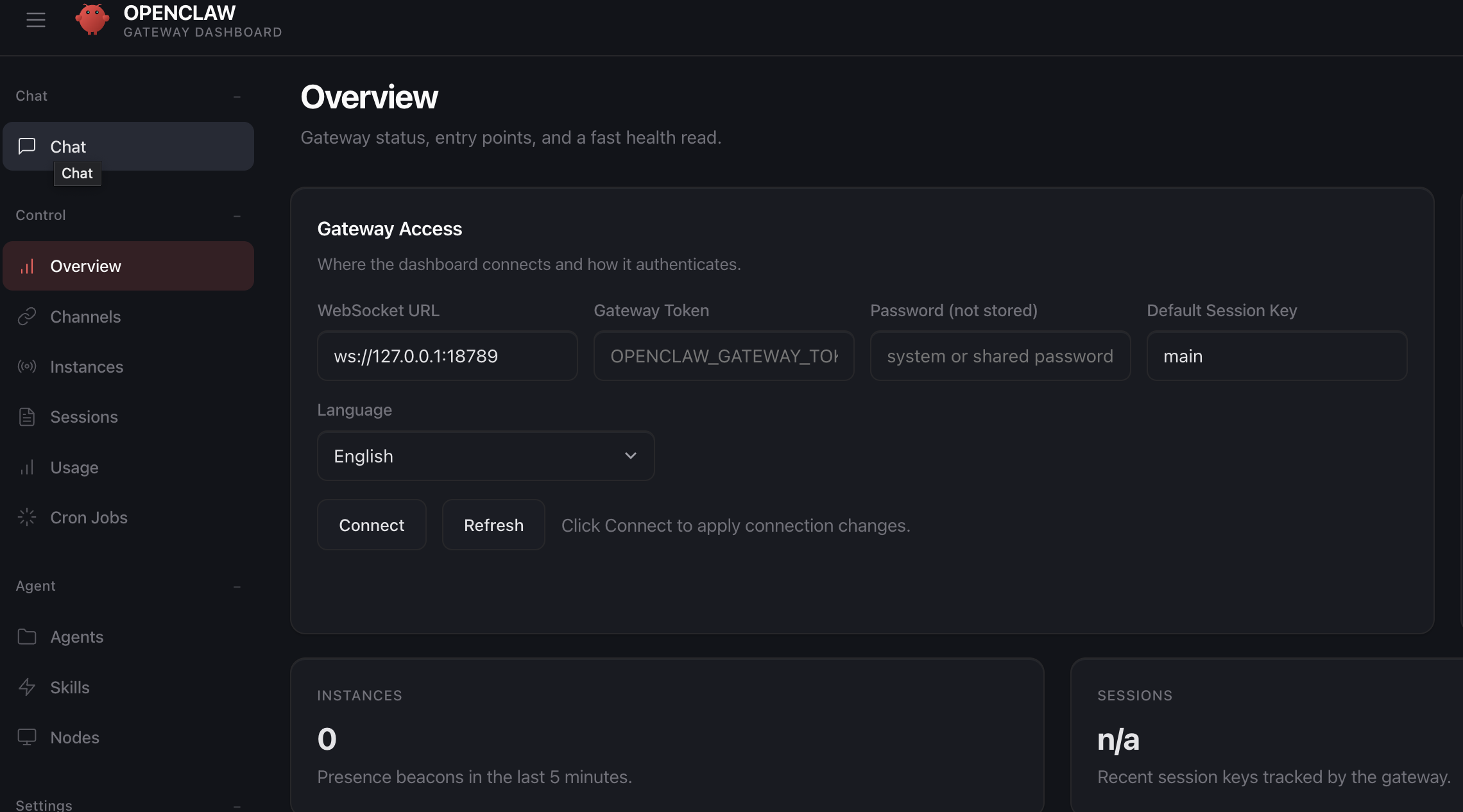
OpenClaw sera accessible à http://localhost:3000
6. Détruire le pod
terraform destroy -var="ssh_public_key=$(cat ~/.ssh/id_ed25519.pub)"