# Commandes linux à savoir
- Canonical URL: https://leandeep.com/commandes-linux-%C3%A0-savoir/
- Author: Olivier Eeckhoutte
- Published: 2013-01-16T19:40:00Z
- Updated: 2013-01-16T19:40:00Z
- Language: fr
- Tags: Unix Tip, tips
- License: CC BY-NC 4.0 (https://creativecommons.org/licenses/by-nc/4.0/)
## Chercher une string dans les fichiers d'un répertoire de manière récursive
```
grep -r "password" ~/Dev
i stands for ignore case.
r ou R stands for recursive.
l stands for "show the file name, not the result itself".
```
> Alternative: utiliser ack (https://beyondgrep.com/install/)
> `$ ack "http://" ~/Dev/`
> Autre alternative: utiliser ag (https://github.com/ggreer/the_silver_searcher)
> `$ ag "password" ~/Dev`
## Localiser un fichier
```
sudo find / -name "*filename"
```
## Changer la date d'un fichier
```
touch -d "2 hours ago" /tmp/test
```
## Boucle infinie
Pour ré-exécuter la même commande à l'infini par exemple:
```
while true
> do
> touch -d "2 hours ago" /tmp/test
> sleep 2
> done
```
## Voir le code retour de la dernière commande:
```
echo $?
```
## Inline if statement
Example:
Retourner un exit 1 si la date du fichier /tmp/test est supérieure à 50 minutes
```
if [ $(find /tmp/test -type f -mmin +50 | wc -l) -gt 0 ]; then exit 1; fi
```
## Liste des ports par défaut des utilitaires de base
```
vi /etc/services
```
## Créer un groupe
```
sudo groupadd -g 4001 mon_groupe
```
## Ajouter/ Retirer un groupe à un utilisateur
```
# delete
gpasswd –d group user
# add
gpasswd –a group user
# Alternative
sudo usermod -aG mon_groupe olivier
```
## Ajouter un nouvel utilisateur sans droit de login
```
useradd –s /sbin/nologin user
```
Si useradd/adduser ne fonctionne pas, il est possible de créer un utilisateur manuellement:
- Ajouter une entrée pour l'utilisateur dans /etc/passwd
- Idem dans le fichier /etc/group
- Créer le répertoire home de l'utilisateur
- Créer le password pour l'utilisateur avec `passwd`
## Voir toutes les variables d'environnement du système
```
env
# ou
printenv
```
## Rediriger STDOUT and STDERR en Bash
```
Rediriger STDOUT vers un fichier en ajoutant > entre les commandes.
Rediriger STDOUT vers une autre commande STDIN en ajoutant | entre les commandes.
Rediriger STDERR vers un fichier en ajoutant 2> entre les commandes.
Rediriger STDERR vers STDOUT en ajoutant 2>&1 entre les commandes.
```
## Dupliquer un flux de données
Utiliser la commande `tee`
```
ifconfig -a | tee net.txt
```
Exemple:
Faire tourner un script Bash et à la fois voir son output dans le terminal et l'enregistrer dans une fichier:
```
bash_script 2>&1 | tee bash_script.log
```
## Retourner les premières lignes d'un fichier
```
head fichier
# inverse de tail
```
## Différence entre hardlink et symlink
- Symlinks point to another file by name, if you change the contents of the file, but not the name it will point to the file with new content. If you remove the source or change the name to it, the symlink it no longer works.
- Hardlinks point to the file by `inode` number, if you modify the file name or even delete **it still works until every hard link to it is removed.**
> An inode is a data structure used to represent a filesystem object. Lots of fields are stored in an inode ex: Inode number, direct/indirect disk blocks, number of blocks, change and modification time, File deletiontime, size, type, group, owner, permissions, etc.
## Forcer un check filesystem lors du prochain reboot
```
touch /forcefsck
```
## Voir les ports utilisés par les process
```
netstat -tulpn
```
## Utiliser une machine comme router entre 2 subnets
```
echo "1" > /proc/sys/net/ipv4/ip_forward
```
## Différence entre un process et thread?
Threads sont utilisées pour des petites tâches alors que les process sont utilisés par des tâches plus "lourdes" comme l'exécution d'applications.
## Différence entre exec and fork?
Fork duplique le process actuel.
Exec exécutes un process en utilisant l'executable cible et vous n'avez pas 2 processes qui font tourner le même code ou qui hérite du même état.
## Différence entre les 2 commandes ?
```
omyvar=helloo
export myvar=hello
```
- 1er cas: omyvar est restreint uniquement au shell
- 2ème cas: exporter la variable la rend accessible à n'importe quel process
## Limiter la mémoire utilisée par un process
Soit en utilisant `ulimit` pour un changement temporaire ou `sysctl -a` pour un changement permanent
## Voir les logs system (systemd)
```
journalctl -f
```
## Voir les logs system et filtrer (systemd)
```
journalctl -f -u le_filtre
```
## Nettoyer les logs de plus de 2 jours (systemd)
```
journalctl --vacuum-time=2d
```
## Ne garder que 500 Mo de logs (systemd)
```
journalctl --vacuum-size=500M
```
## Voir les logs d'un service avec follow + tail et affichage des résultats sans pagniation (systemd)
```
journalctl -u blabla.service -n 50000 --no-pager
```
## Montage/Démontage NFS
```
# Montage
mount -t nfs SERVER:MONTAGE_SUR_BAIE ./dossier_local/
# Démontage
umount ./dossier_local
```
## Afficher les paramètres kernel configurés dans /etc/sysctl.conf
```
sysctl -p
```
## Afficher les erreurs kernel en mode readable
```
dmesg -T
```
## Debug réseau avec TCPdump
Ouvrir dans 1er terminal:
```
tcpdump -vnni any host dns_a_filtrer
tcpdump -vnni any port 5000
tcpdump -vnni any not dst net 192.168.0.1/8
tcpdump -vnni eth0 not dst net 192.168.0.1/8
```
Dans un second terminal:
```
ping dns_a_filtrer
docker pull dns_a_filtrer
curl dns_a_filtrer
```
## Scanner son réseau avec nmap
```
# apt install nmap
# Scanner les machines dans un réseau sans chercher à savoir si les ports sont ouverts:
nmap -sn 192.168.0.0/24
# ou scan plus complet:
nmap 192.168.0.0/24
```
## Monitoring (simple) de host
```
# IO par disque
sar -d
# Etat des IO disque
sar -b
# Etat du Swap
sar -W
# Etat de la mémoire
sar -r
# Etat du CPU
sar -u
# All
sar -A
```
## Copier tout un dossier et gérer les IO Errors
Workaround:
```
rsync -auv --delete --ignore-errors /Volumes/Olivier/* /Volumes/LaCie/
```
**Lister les services**
```
systemctl list-units --type=service
# Ou
systemctl -l -t service | less
```
## Systemd et cgroup
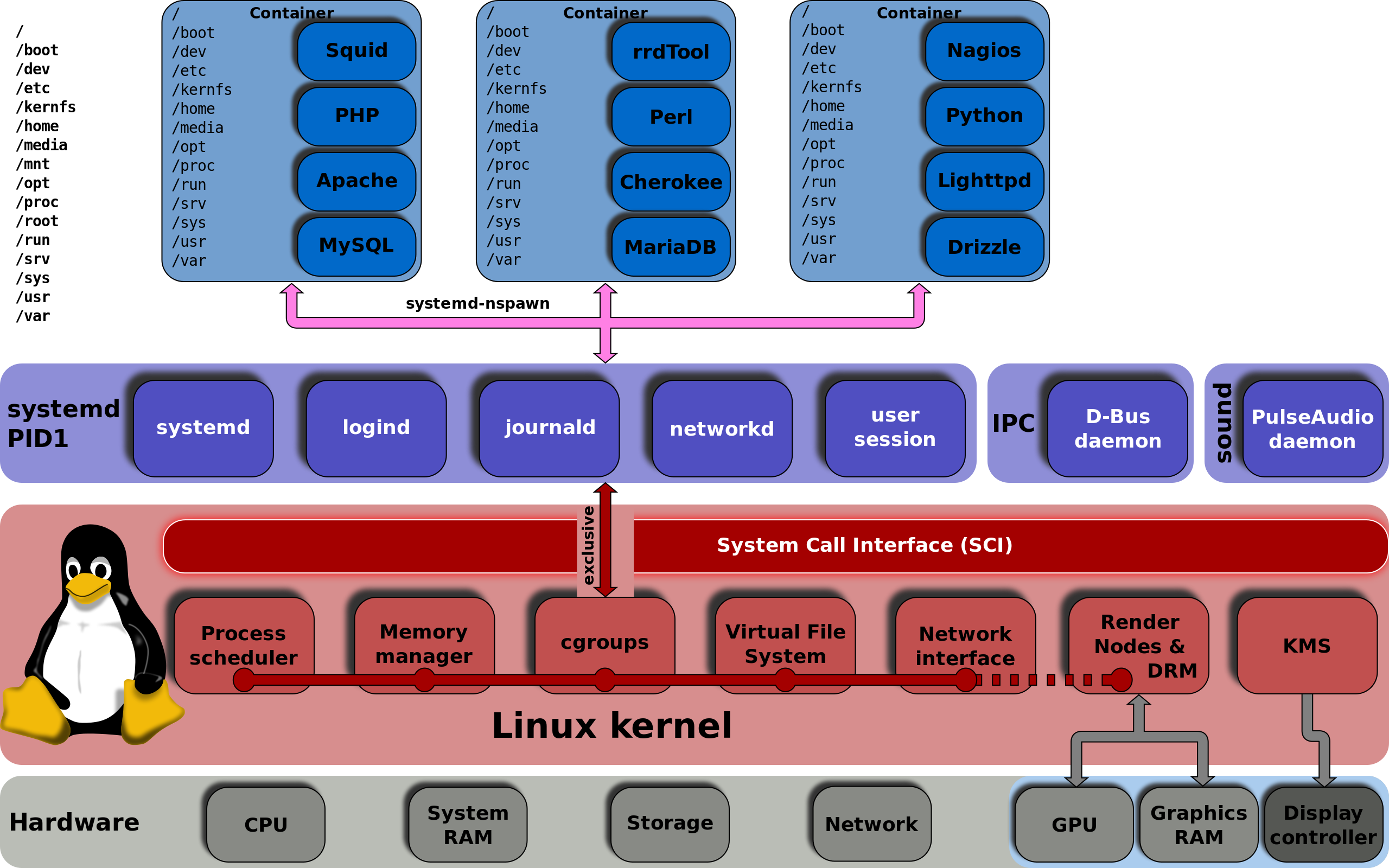
Source: [Wikipédia](https://fr.wikipedia.org/wiki/Filesystem_Hierarchy_Standard)
## Linux Filesystem Hierarchy
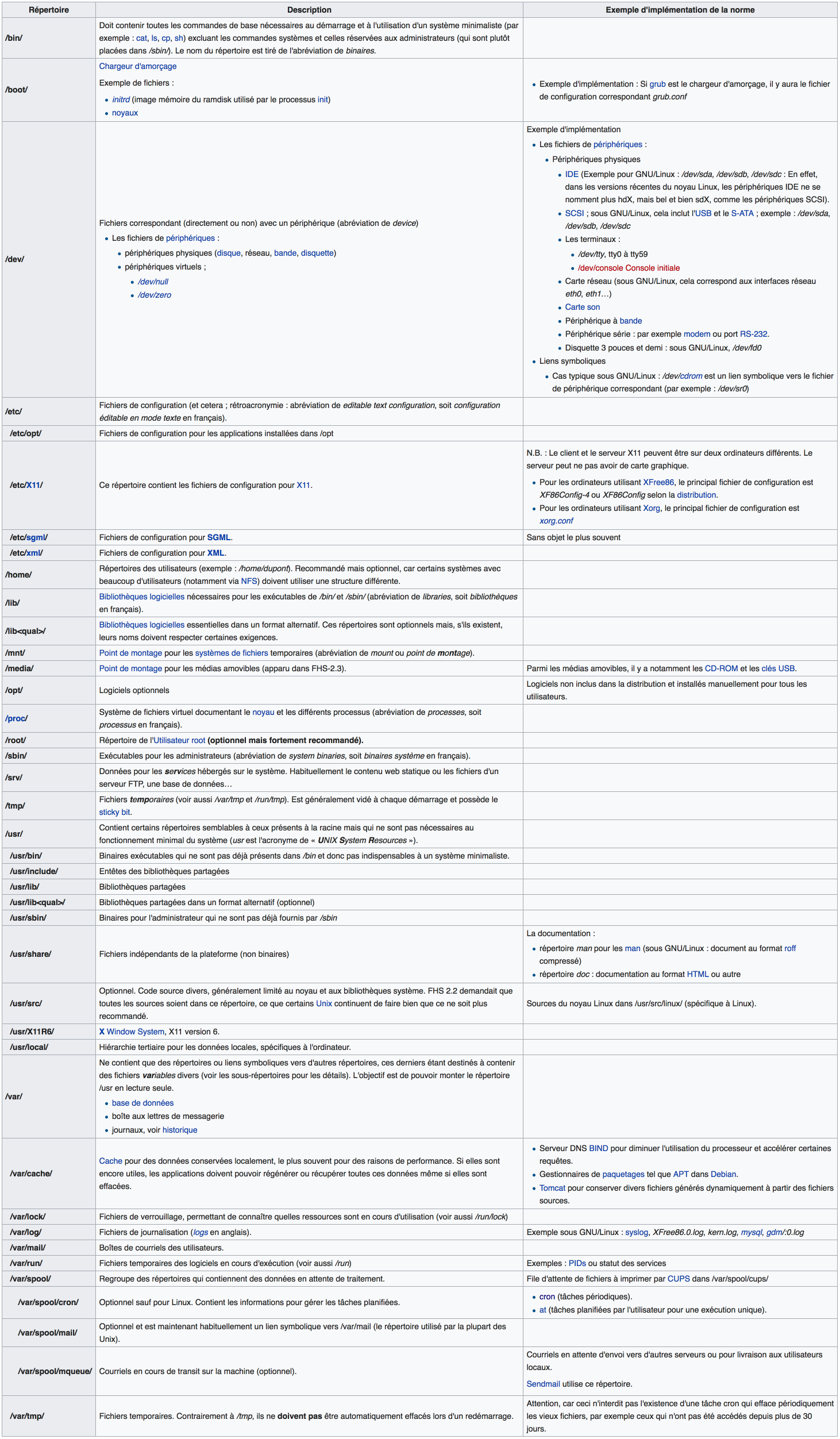
Source: [Wikipédia](https://fr.wikipedia.org/wiki/Filesystem_Hierarchy_Standard)
Lien vers le standard: https://refspecs.linuxfoundation.org/FHS_3.0/fhs-3.0.html
## Raccourcis pour le terminal
| Key combination | Action |
| --------------- | ------ |
| Ctrl + A | Move to the beginning of the line |
| Ctrl + E | Move to the end of the line |
| Alt + B | Move to the previous word |
| Alt + F | Move to the next word |
| Ctrl + U | Erase to the beginning of the line |
| Ctrl + K | Erase to the end of the line |
| Ctrl + W | Erase the previous word |
| Ctrl + P | Browse previously entered commands |
| Ctrl + R | Reverse search for previously entered commands |
## Créer un soft (ou symbolic) link sur un fichier
```
ln -s dossier_cible nom_du_lien
```
Par exemple:
```
$ ln -s /etc/hostname name
$ ls -l
total 12
-rw-rw-r--. 1 olivier olivier 13 Jan 16 21:14 hello.txt
lrwxrwxrwx. 1 olivier olivier 13 Jun 16 22:32 name -> /etc/hostname
$ cat name
localdev.local
```
> Si on efface le fichier original sur lequel point le soft link alors ce dernier devient inutile parce qu'il va pointer sur un fichier qui n'existe plus. Les soft links peuvent aussi pointer sur des fichiers dans un autre file system.
## Créer un hard link
Exemple:
```
$ echo "Hello World!" > hello.txt
$ ln hello.txt bye.txt
$ ls -l
total 16
-rw-rw-r--. 2 fedora fedora 13 Jun 16 21:14 bye.txt
-rw-rw-r--. 2 fedora fedora 13 Jun 16 21:14 hello.txt
lrwxrwxrwx. 1 fedora fedora 13 Jun 16 22:32 name -> /etc/hostname
$ cat hello.txt
Hello World!
$ cat bye.txt
Hello World!
$ echo "1234" > hello.txt
$ cat bye.txt
1234
$ cat hello.txt
1234
$ rm hello.txt
$ cat bye.txt
1234
$ ls -l
total 12
-rw-rw-r--. 1 olivier olivier 13 Jun 16 22:39 bye.txt
lrwxrwxrwx. 1 olivier olivier 13 Jun 16 22:32 name -> /etc/hostname
```
Dans l'exemple précédent, on a créé un hard link en utilisant la commande `ln`.
Quand on a fait un changement dans le fichier original hello.txt file, le changement a été répercuté sur le fichier bye.txt.
Mais comme bye.txt est un hard link, même si on efface hello.txt le hard link existe toujours et son contenu reste le même que le contenu original.
## Fichiers tar
**Extraire un tar**
```
$ tar -xzvf files.tar.gz
hello.txt
bye.txt
```
> Le fichier files.tar.gz est compressé avec gzip. Si le fichier termine par .tar.bz2, alors il est compressé avec bzip2.
```
$ tar -xjvf files.tar.bz2
hello.txt
bye.txt
```
**Créer un tar**
```
$ tar -czvf files.tar.gz hello.c bye.txt
hello.txt
bye.txt
$ ls
bye.txt files.tar.gz hello.txt
```
## Lire un fichier /etc/passwd
```
root:x:0:0:root:/root:/bin/bash
bin:x:1:1:bin:/bin:/sbin/nologin
daemon:x:2:2:daemon:/sbin:/sbin/nologin
adm:x:3:4:adm:/var/adm:/sbin/nologin
lp:x:4:7:lp:/var/spool/lpd:/sbin/nologin
sync:x:5:0:sync:/sbin:/bin/sync
shutdown:x:6:0:shutdown:/sbin:/sbin/shutdown
halt:x:7:0:halt:/sbin:/sbin/halt
mail:x:8:12:mail:/var/spool/mail:/sbin/nologin
operator:x:11:0:operator:/root:/sbin/nologin
games:x:12:100:games:/usr/games:/sbin/nologin
ftp:x:14:50:FTP User:/var/ftp:/sbin/nologin
nobody:x:99:99:Nobody:/:/sbin/nologin
systemd-timesync:x:999:998:systemd Time Synchronization:/:/sbin/nologin
systemd-network:x:192:192:systemd Network Management:/:/sbin/nologin
systemd-resolve:x:193:193:systemd Resolver:/:/sbin/nologin
dbus:x:81:81:System message bus:/:/sbin/nologin
sshd:x:74:74:Privilege-separated SSH:/var/empty/sshd:/sbin/nologin
chrony:x:998:995::/var/lib/chrony:/sbin/nologin
systemd-coredump:x:994:994:systemd Core Dumper:/:/sbin/nologin
olivier:x:1000:1000:Olivier:/home/olivier:/bin/bash
# Please note --> ":x:" = ": x :" (sans espace)
```
| FIELD | MEANING |
| ----- | ------- |
| username | the username |
| password | the password of the user |
| uid | Numeric user id |
| gid | Numeric group id of user |
| gecos | arbitary field |
| /home/dirname | Home directory of the user |
| shell | Which shell to use for the user |
## /etc/group
Si un utilisateur est membre du groupe `wheel`cela signifie qu'il a accès à sudo.
> To be able to use sudo command, you must have your user mentioned in the /etc/sudoers file. The best way to edit the file is to use visudo command as root user.
## she-bang ou sha-bang dans les fichiers exécutables
she-bang ou sha-bang est la première ligne d'un script qui débute par `#!` suivi du path de l'exécutable du script.
Example: `#!/bin/bash`
## Lister les dossiers les plus lourds
```
du --max-depth=7 /* | sort -n
```
## Obtenir mon IP externe via google
```
dig TXT +short o-o.myaddr.l.google.com @ns1.google.com | awk -F'"' '{ print $2}'
```
## Obtenir le header réponse à une requête
Tout simplement `curl -I http://www.example.org`.
## Obtenir la version de l'OS/ distro/ distribution
```
cat /etc/os-release
```
## Lister les packages Debian installés
```
sudo apt list --installed
```
## Convertir un timestamp unix en date lisible
```
date -d 1656894384
```
## Voir les différences entre 2 commandes
```
diff -u <(ls -l ~/Dev/ ) <(ls -l ~/Dev2/ ) | colordiff
```
## Chercher dans apt les packages disponibles
```
apt-cache search VOTRE_PACKAGE
```
## JQ ou Python pour formatter un json
```
cat mon_fichier.json | jq
# ou
cat mon_fichier.json | python -m json.tool
```
## Proxy netcat
```
nc -l 8080 | nc VOTRE_HOST 80
```